

Learn how to download your Turnitin Originality Report PDF. This step-by-step guide helps students save and share their similarity results.

SUMMARY: Students can download their Turnitin Originality Report PDF by logging into their institution’s portal, opening the relevant assignment, clicking the similarity score to launch the Feedback Studio viewer, and selecting “Current View” from the download icon’s dropdown menu. The resulting PDF includes submission metadata, highlighted text matches, and a source list.

Check your essay before you submit. See exactly what your professor sees.
Get the exact same Turnitin report your professor uses. Join 50,000+ students who submitted their essays with confidence this semester.
The guide also covers common download issues, such as browser compatibility and expired class access, and explains how AI detection scores appear alongside similarity results. Students are advised to review all matches carefully and allow up to 24 hours for resubmission reports to generate.
How to Download Your Turnitin Originality Report PDF
If you have just run a Turnitin check on your paper and that similarity score is staring back at you, you are probably wondering how to save that report. Having a PDF copy comes in handy more often than you would think. You might need to submit it alongside your assignment, keep it for your records, or show it to a tutor. Turnitin makes downloading your Originality Report straightforward once you know where to look.
What Is the Turnitin Originality Report?
Before jumping into the download steps, it helps to understand what you are actually looking at. The Turnitin Originality Report, sometimes called the Similarity Report, highlights text in your submission that matches sources in Turnitin’s database. That database includes web pages, academic journals, books, and previously submitted student papers.
The report shows a similarity percentage. This number tells you how much of your text matches other sources. A high percentage does not automatically mean plagiarism; it simply flags areas that need your attention. You and your instructor can review these matches to see if citations are missing or if paraphrasing could use some work.
Many universities now pair the similarity scan with Turnitin AI detection to flag content that may have been generated by AI writing tools.
Step-by-Step Guide to Downloading Your Report
The process differs slightly depending on if your school uses the Turnitin website directly or an integrated learning management system like Canvas, Moodle, or Blackboard. The core steps remain the same across platforms.
Accessing Your Submission
Log into your Turnitin account through your institution’s portal. Find the class where you submitted your paper, then open the assignment inbox. You should see your submission listed with a similarity percentage next to it. Click that percentage to open the report.
If you do not see a similarity score, a few things could be happening. Your instructor may have disabled student access to reports, or the file might still be processing. Turnitin scans can take anywhere from a few minutes to 24 hours to generate, especially if you resubmitted recently.
Opening the Similarity Report
Once you click the similarity score, the Turnitin Feedback Studio opens in a new tab. This is the viewer where you can see highlighted matches, view source details, and check feedback your instructor left. On the right side of the screen, you will find a toolbar with several icons. Look for the download arrow; this is your gateway to saving the report.
If your school uses Turnitin for students through an LMS, the layout might look different, but the download icon is almost always visible in the report viewer.
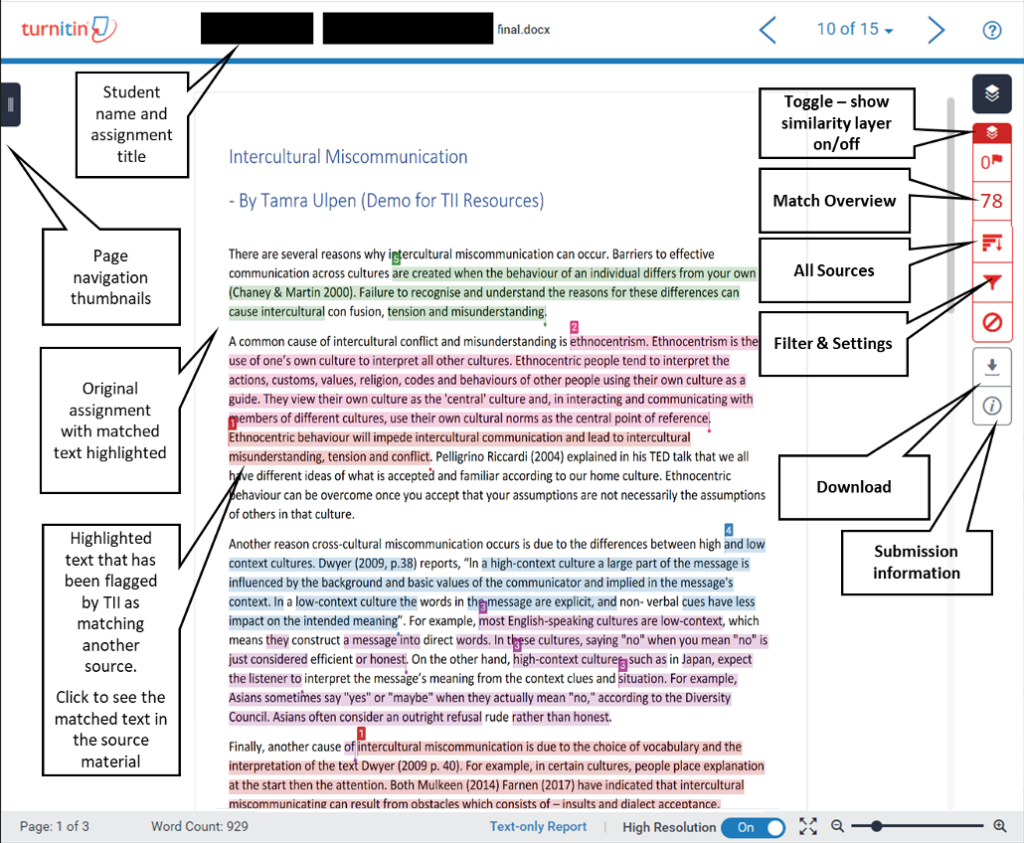
Downloading as a PDF
Click the download icon and select Current View from the dropdown menu. This option saves exactly what you see on screen as a PDF file. The downloaded document includes your paper with highlighted matches, the similarity score, submission details like date and word count, and a source list at the end.
Make sure the Similarity layer is active before you download. If you only want the similarity data and not grading comments or QuickMarks, deactivate those layers first. The PDF captures whatever layers are currently visible, so double-check what is showing before you hit download.
Large files can take a minute or two to process. Keep the browser tab open until the download starts automatically. Closing it early cancels the process and you will have to start over.
Understanding Your Report
The PDF contains three main sections. The first page shows metadata: your submission ID, the date you uploaded, your word count, and the overall similarity percentage. The second section is your paper itself, with matching text highlighted in different colors. Each color corresponds to a different source. The third section lists all matched sources with their percentages and URLs where available.
This format makes it easy to review your matches offline or share the report with an advisor. Many students print the report and annotate it while revising their draft.
Turnitin AI Detection and Your Report
In 2024 and 2025, Turnitin rolled out AI writing detection capabilities alongside its similarity checking. If your institution enabled this feature, you may see an AI indicator in the report viewer. This appears as a separate score showing the percentage of your text that Turnitin suspects was generated by AI.
The AI detection report can also be downloaded as a PDF using the same download icon. Keep in mind that AI detection is still developing technology. False positives happen, especially with formal academic writing. If you believe your work was flagged incorrectly, talk to your instructor.
What to Do If Your Report Won’t Download
Sometimes the download button does not respond, or the PDF comes out blank. First, check your browser. Turnitin works best on Chrome, Firefox, or Safari. Disable any ad blockers or privacy extensions that might interfere with pop-ups or downloads.
If the report viewer itself won’t load, the file might be the issue. Password-protected PDFs, scanned images saved as PDFs, or files with dense vector graphics can cause processing failures. Convert your original document to a standard PDF using Adobe Acrobat or Microsoft Word, then resubmit if needed.
Another common issue: your class may have expired. Turnitin keeps submissions accessible for about 180 days after a class ends. If you need a report from an old class, contact your instructor.
Tips for Students Using Turnitin
Run your paper through a Turnitin scan before the deadline. Give yourself at least 24 hours before submission in case you need to interpret results and make revisions. Similarity reports for resubmissions can take up to 24 hours to regenerate.
Review every match, even small ones. Sometimes a low similarity score hides a single large block of copied text that needs attention. Other times, a high score comes from correctly cited references, which is fine.
If your school does not give you direct access, ask about alternative options. Some institutions use Turnitin for students through Draft Coach, a Google Docs add-on that lets you check your work before uploading the final version.
Official Turnitin Documentation
For a comprehensive list of Downloading and sharing the Similarity Report, refer to the official support guides:
Downloading and sharing the Similarity Report
Final Thoughts
Downloading your Turnitin Originality Report PDF is simple once you know the steps. Log into your account, open the similarity report from your assignment inbox, click the download icon, and select Current View. The PDF saves to your computer with all matches highlighted and sources listed for easy reference. You are checking your work before a deadline or reviewing feedback after grading; either way, having that PDF on hand makes the process smoother.
Worried about plagiarism scores or AI detection flags? Get the exact same plagiarism & AI report your professor sees in 15-20 minutes. Trusted by thousands of students, researchers, institutions, and agencies.