

Learn how students can preview Turnitin similarity reports, understand color scores, and work around resubmission limits before final submission.
SUMMARY: Students can access Turnitin similarity reports through several ways, including Draft Coach, draft submission folders, or resubmission-enabled assignments, all of which allow review before a final submission is made. AI detection reports, however, are typically restricted to instructors only and are not visible to students under standard settings. Having a solid understanding of how report settings work, what the similarity score color indicators mean, and what limits exist on resubmissions empowers students to review their work proactively, make informed revisions, and avoid any unexpected outcomes at the time of final submission. For example, knowing that a high similarity score shown in red may signal a need to paraphrase or add citations — rather than indicating automatic academic misconduct — can help students interpret results accurately and take appropriate action. Similarly, being aware that resubmission limits may apply means students can plan ahead and avoid losing the opportunity to check their work a second or third time before the deadline.
Get the Same Plagiarism and AI Report Your Professor Sees: A Guide for Students
You finish writing your essay at 11 PM. It is due tomorrow. You want to run a quick Turnitin check to see if anything flags, but you are not sure if you even have access. You are not alone. Most students assume they can log into Turnitin directly and scan their own papers. You cannot. Turnitin does not offer standalone student accounts. Your access depends entirely on how your instructor configured the assignment. The good news: there are several ways to see the same report your professor will see, and this guide walks you through each one.
Why You Cannot Just “Log Into Turnitin” as a Student
Turnitin is built for institutions, not individual users. Your school or university purchases a license, and instructors create assignments within that system. You submit through a Learning Management System like Canvas, Blackboard, or Moodle. There is no separate “student portal” where you can upload papers independently for a quick Turnitin scan. If you want to check your work before the deadline, you need to use one of the pathways your institution provides.
Using Turnitin Draft Coach for Pre-Submission Checks
If your school has enabled it, Turnitin Draft Coach is your best option. It lives inside Microsoft Word or Google Docs and lets you run up to three similarity checks per document before you ever hit submit. Your document stays private. It does not get stored in Turnitin’s repository, so you will not accidentally create a self-match when you submit your final version later.
To use Draft Coach, open your document in Word or Google Docs, look for the Turnitin tab, and select “Similarity Check.” Within a few minutes, you will see your similarity percentage and highlighted matches. Click on any match to see the source. You can also open the full report for a side-by-side comparison. Use those three checks wisely. Wait until you have made substantial revisions before running another one.
Submitting to a Draft or Practice Assignment
Some instructors set up separate “draft” submission points specifically for this purpose. You upload your paper, Turnitin generates a similarity report, and you can revise before submitting to the actual assignment folder. Check your course page for a practice folder or draft dropbox. If you do not see one, ask your instructor directly. A simple message works: “Is there a way to check my paper in Turnitin before the final submission?” Most instructors appreciate students who care about originality.
Using Resubmissions to Check Your Turnitin Score
If Draft Coach is not available and there is no draft folder, look at your assignment settings. Some instructors allow resubmissions, which means you can upload a draft, view your Turnitin similarity report, then overwrite it with a revised version. Here is where it gets tricky. Turnitin has strict limits on how often you can generate a new report:
- On Classic Standard Assignments, your first three submissions generate reports immediately. After that, you wait 24 hours for each new report.
- On New Standard Assignments, you get three resubmissions within any 24-hour period. Exceed that, and you wait until the next calendar day.
If resubmissions are disabled entirely, your first upload is final. In that case, you really should contact your instructor before the due date to ask about setting up a practice submission point.
What You Actually See in a Turnitin Similarity Report
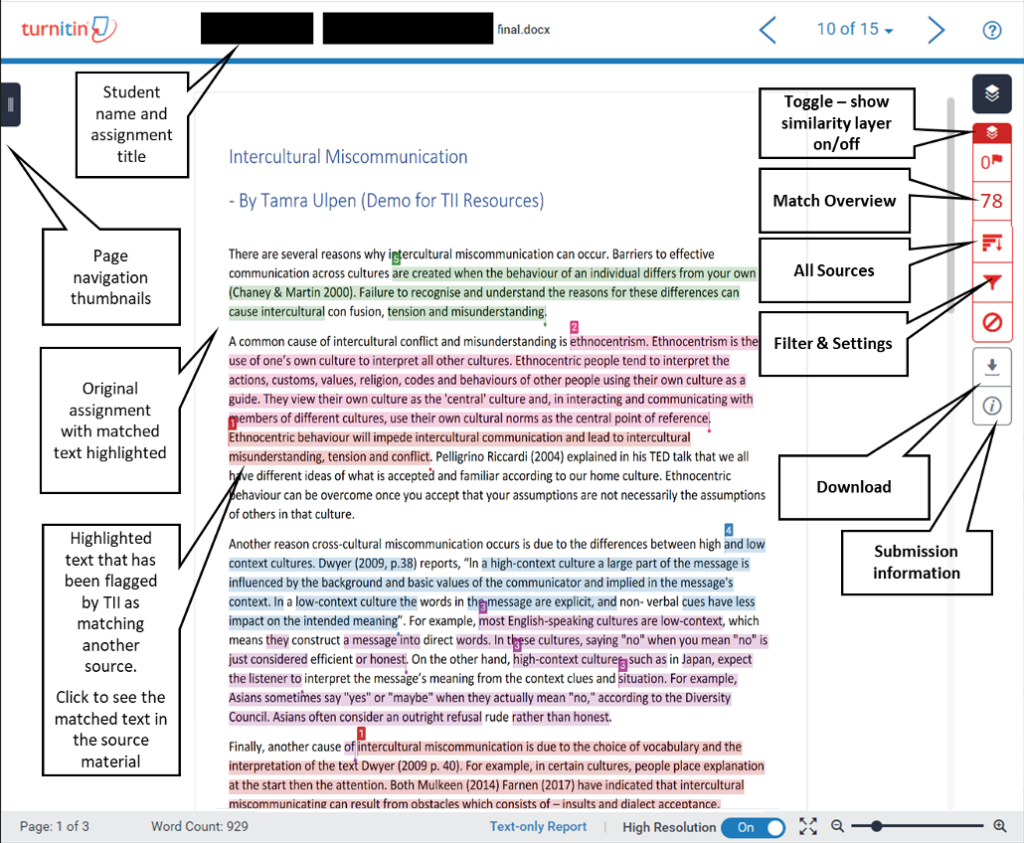
Once you access your report, you will see a similarity score displayed as a percentage and a color. Blue or green means a low match percentage. Yellow and orange indicate moderate overlap. Red signals a high percentage of matched text. That percentage represents how much of your writing overlaps with content in Turnitin’s database, which includes billions of web pages, academic journals, and previously submitted student papers.
The report highlights matching text directly on your document. Click a highlight to see the source. You can also filter the report to exclude bibliographies, quoted material, or small matches below a certain word count. A high percentage does not mean you plagiarized. It means you need to review those sections. Properly cited quotes and reference lists often create matches. The score is a starting point for review, not an accusation.
The Truth About Turnitin AI Detection Reports
Here is what frustrates most students: the AI detection report is usually invisible to you. Turnitin’s AI writing indicator sits inside the instructor-facing Similarity Report. It shows an overall percentage of text that Turnitin’s model predicts was generated or paraphrased by AI. Since mid-2024, scores below 20% display an asterisk instead of a number, and no text gets highlighted. Scores of 20% or higher show cyan highlights for AI-generated text and purple highlights for AI-paraphrased content.
Your professor sees this. You typically do not. Some third-party tools claim to replicate the Turnitin AI checker experience, but only your institution’s official Turnitin setup can generate the exact report your instructor will review. If you are worried about AI flags, focus on writing in your own voice, adding specific examples, and avoiding generic phrasing that large language models tend to produce.
Common Reasons You Cannot See Your Report
Sometimes you submit and nothing appears. Before you panic, check these common causes:
- Report generation is set to the due date. Your instructor may have configured the assignment to generate reports only after the deadline passes. You will not see anything until then.
- Student viewing is restricted. Instructors can disable student access to Similarity Reports entirely.
- You used an unsupported file type. Password-protected PDFs, scanned images, Apple Pages files, and certain PowerPoint themes can block report generation.
- You resubmitted too many times. You may have hit the three-submission limit and now face a 24-hour waiting period.
If none of these apply and you still see no report, reach out to your instructor. They can check the assignment settings or regenerate the report manually.
How to Lower Your Similarity Score Before Submitting
You checked your report and the number looks higher than you expected. Now what? Start by reviewing every highlighted match. Ask yourself: is this a properly cited quote? Is this a common phrase or technical term that naturally appears in many papers? Or did I forget to paraphrase a source?
Rewrite any flagged passages in your own words and always include a citation. Break up long quotes. Add your own analysis and examples between source references. Check that your bibliography formatting matches your required style guide. Small fixes across multiple sections can bring your score down significantly.
Final Thoughts: Check Early, Revise Smart
Waiting until the last minute to run your first Turnitin check is risky. Report delays, resubmission limits, and restricted settings can leave you with no time to fix problems. Upload a draft as early as possible. Use Draft Coach if you have it. Review every match in your similarity report. Write originally, cite properly, and you will submit with confidence.
Official Turnitin Documentation:
For more details on why a Similarity Report may not appear immediately, refer to the official Turnitin support guide: Why has the Similarity Report not generated?
Worried about plagiarism scores or AI detection flags? Get the exact same plagiarism & AI report your professor sees in 15-20 minutes. Trusted by thousands of students, researchers, institutions, and agencies.